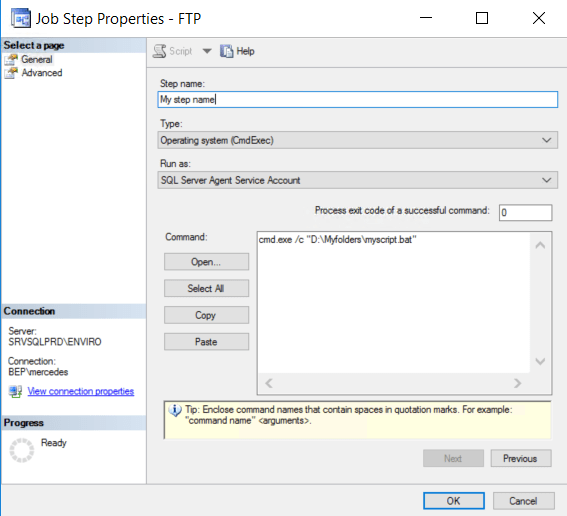
How to configure the Windows Task scheduler to launch a bat file

  • Go to : Adminstrative Tools > Task scheduler
  • Create a new task
  • Specify the trigger in the second tab
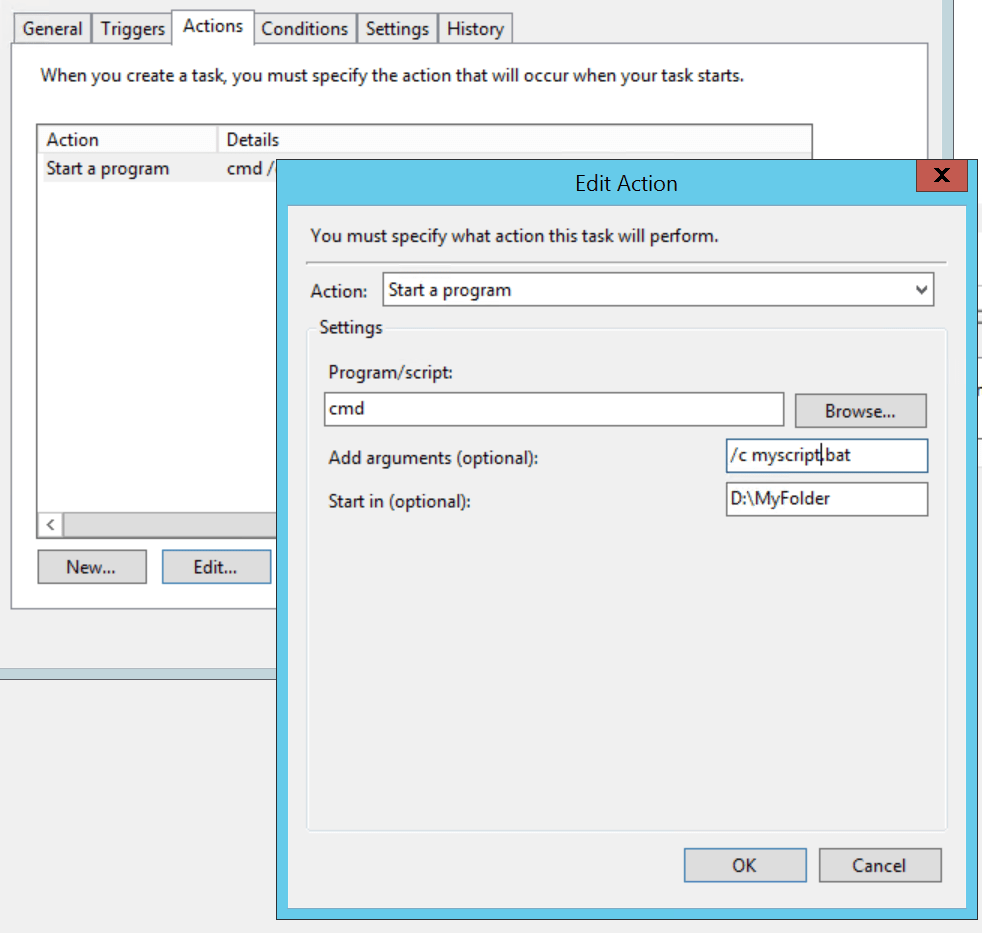
  • Specify the action in the third tab, like this :

Action : start a program
Settings :
– program/script : cmd
– add argument : /c myscript.bat
– start in : d:\myfolder

2019-03-05_10h14_04

Remarks :
– /c is an argument of the cmd command, meaning : “Carries out the command specified by string and then terminates”
– d:\myfolder = the drive and folder containing the myscript.bat

Set up your web.config connection string with active directory user

0) Make sure your logon name is shorter than or equal to 20 characters, this could save you from having some issues
1) Grant the AD user the correct rights in the database, via SQL Management Studio
2) Modify the connection string as follows :
<add name=”MyConnection” providerName=”System.Data.SqlClient” connectionString=”Data Source=MyDatasource;Initial Catalog=MyDB;User ID=login;Password=password” />

becomes

<add name=”MyConnection” providerName=”System.Data.SqlClient” connectionString=”Data Source=MyDatasource;Initial Catalog=MyDB;Integrated Security=SSPI” />

3) Add the following in the web.config :

<identity impersonate=”true” userName=”MyADDomain\Login” password=”password”/>

4) Add the MyADDomain\Login in the IIS_USRS.
Launch the Computer Management; Go to System Tools -> Local Users and Groups -> Groups, notice the IIS_USRS group, and add your active directory into it.

How to attach an image in a zendesk ticket via the API

First step

Perform a call to /api/v2/uploads.json, e.g :

curl “https://{subdomain}.zendesk.com/api/v2/uploads.json?filename=myfile.dat&token={optional_token}” \
-v -u {email_address}:{password} \
-H “Content-Type: application/binary” \
–data-binary @file.dat -X POST

In response, you will receveive a token, e.g :
{
“upload”: {
“token”: “6bk3gql82em5nmf“,

}
}

Second step

Create your ticket via the API like this :

Call https://{subdomain}.zendesk.com/api/v2/tickets.json with the following headers :

Content-Type : application/json
Authorization: Basic [insert here your base64encoded token]

{
“ticket”: {
“subject”: “Hello”,
“description” : “Here is my ticket content”,
“priority”: “normal”,
“type” : “task”,
“comment”: {“uploads”: [“6bk3gql82em5nmf“]}
}
}

How to obtain your base64encoded token ?

  1. In Zendesk, go to Settings, Channels, API and create a new token (e.g : Zendesk generates : Q2oyV3NOdEFJOThpdER2cmlVRDFNQlNDNz)
  2. Now build this string : youremail@company.com/token:Q2oyV3NOdEFJOThpdER2cmlVRDFNQlNDNz
  3. Go to https://www.base64encode.org/ to encode your string; youremail@company.com/token:Q2oyV3NOdEFJOThpdER2cmlVRDFNQlNDNz becomes eW91cmVtYWlsQGNvbXBhbnkuY29tL3Rva2VuOlEyb3lWM05PZEVGSk9UaHBkRVIyY21sVlJERk5RbE5ETno=
  4. Your header must be Authorization: Basic eW91cmVtYWlsQGNvbXBhbnkuY29tL3Rva2VuOlEyb3lWM05PZEVGSk9UaHBkRVIyY21sVlJERk5RbE5ETno